MAKE / DOCUMENTS / DESKTOP PRACTICE
Make a form.
Keep the original.
Create a basic reusable form without buying a PDF editor. Change this fictional workshop template in free LibreOffice Writer, then export a blank PDF people can fill. Free PDF filling already exists; this route helps you keep and change the form’s design.
Two files, two jobs. ODT is your editable design source. A completed PDF holds answers, not your editable template.
Desktop application required for design changes. Keep untouched copies first. This is a practice template, not a submission service. Use fictional details only.
Change one thing. Save a new blank.
- Keep the originals. Download both files to a folder you can find. Duplicate the ODT as my-workshop-design.odt. Leave the downloaded blank PDF untouched.
- Open the ODT copy in Writer. Get LibreOffice from its official download page. Use a current supported release, not the development build used in our checks.
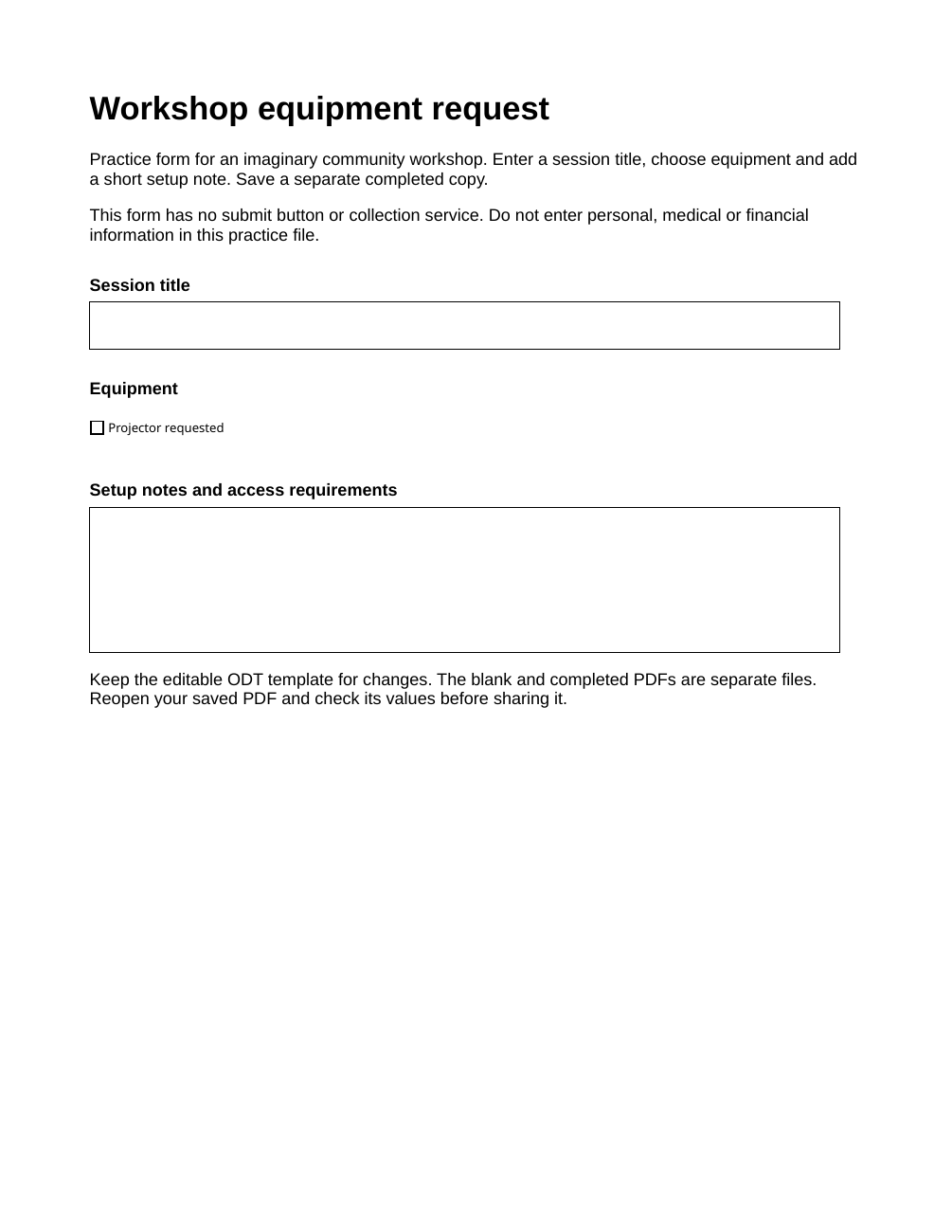
- Make a small design change. Change the heading or a label. To select or change an actual form control, show View → Toolbars → Form Controls and enable Design Mode. Keep the three controls and their distinct names for this first try. Menu wording can vary by release.
- Save the design, then export. Save your ODT copy. Use File → Export As → Export as PDF and enable Create PDF form in the export options. Save as my-workshop-blank.pdf, separate from the ODT. Do not add submission URLs or a submit button.
- Reopen both. Close and reopen the saved ODT to check your design change. Open the new PDF and check that its fields are blank and still interactive. An ordinary print-to-PDF operation can lose the fields.
Fill a copy. Check what survived.
- Open a copy in a PDF reader that supports forms. The browser preview may not save answers reliably. If a field is unavailable, try a desktop reader before changing the template.
- Use a small fictional test. Enter “Evening workshop”, tick Projector and add two short lines of non-sensitive notes. The supplied fields allow up to 60 characters for Session and 240 for Notes; keep the visible text shorter if it clips.
- Save as a separate completed PDF. Use your reader’s save command, for example workshop-practice-completed.pdf. Close it and reopen that exact saved file from your folder, not a still-open preview tab.
- Check, revise, reopen. Confirm the text, line breaks and tick survived. Change a note and untick Projector, save, close and reopen again. Inspect the entire page for clipping. Keep the blank PDF and ODT unchanged.
Sharing a completed PDF shares its answers. Do not put personal, medical or financial information in this practice file. Keep these ODT/PDF files separately; they are not Hub project-bundle formats.
What this route does, and what we checked.
A small local-file task
LibreOffice’s direct desktop download and basic form controls/PDF export are free. No account, paid add-on or cloud upload was used for these files. Store editions and support offers may differ.
No collection service, signatures, calculations, OCR or automatic field detection. Some Writer controls and advanced features do not survive PDF export. Keep the ODT for future design changes.
Native files checked; GUI use unverified
The editable source opened and exported to a blank fillable PDF. Field structure and rendered layout were checked. This is not a tested beginner journey in a current desktop app or PDF reader.
Try fictional details first. Save, close and reopen your own copies before relying on them.
Test scope and limitations
Checked on 9 November 2026 with LibreOfficeDev 26.8.0.0.alpha0, a development build, not the current stable release. The original source was saved as ODT, reopened and exported. The downloadable ODT was also opened and exported separately, preserving the three blank fields, multiline Notes, text and layout. Separate programmatically completed PDFs were saved, reopened and revised; rendered pages were inspected.
Not tested: stable-release GUI editing, Adobe Reader or other reader GUI filling, browser downloads, keyboard navigation, screen readers, mobile, printing or a real novice journey. International text and accessibility compliance are not established.
Official guides and alternatives
- LibreOffice Writer Guide 26.2: Forms explains controls and PDF export limitations.
- LibreOffice PDF export options documents Create PDF form.
- LibreOffice licensing describes the application’s licences and component boundaries.
- Adobe already offers free PDF filling and trials. Filling a supplied PDF differs from creating its fields. Acrobat’s plan comparison includes form work in Standard too; this is not a Pro-only task or a claim of full Acrobat parity.
External sites have their own terms and privacy practices. This workflow uses local copies; it does not require uploading your form to an online filler.
Only need to reorder ordinary PDFs? Use the PDF workbench for simple unsigned PDFs, not these interactive form files.